The Manual-Shipping Time Drain
Most sellers ship like this: open the courier app, retype the buyer's name, phone, and address, set the COD amount, screenshot the tracking number, then paste it back to the buyer on WhatsApp — for every single order.
It's slow, it's error-prone (one wrong digit = a lost package), and it doesn't scale past a few orders a day.
The Fix: Connect Bosta
Bosta is one of Egypt's largest delivery companies. Once connected to sellX, you can book a pickup straight from the order page — the address, phone, and COD amount are filled in automatically from the order. You get the AWB (tracking number) and a printable label instantly, and the buyer's tracking page updates itself as the package moves.
COD goes to you. Bosta collects the cash at the door and remits it to your Bosta account. sellX never holds your money.
Shipping integration is available on every plan, including Free.
Step-by-Step Setup
1. Get your Bosta API key
In your Bosta dashboard, go to Settings → API & Webhooks and copy your API key.
2. Open Integrations in sellX
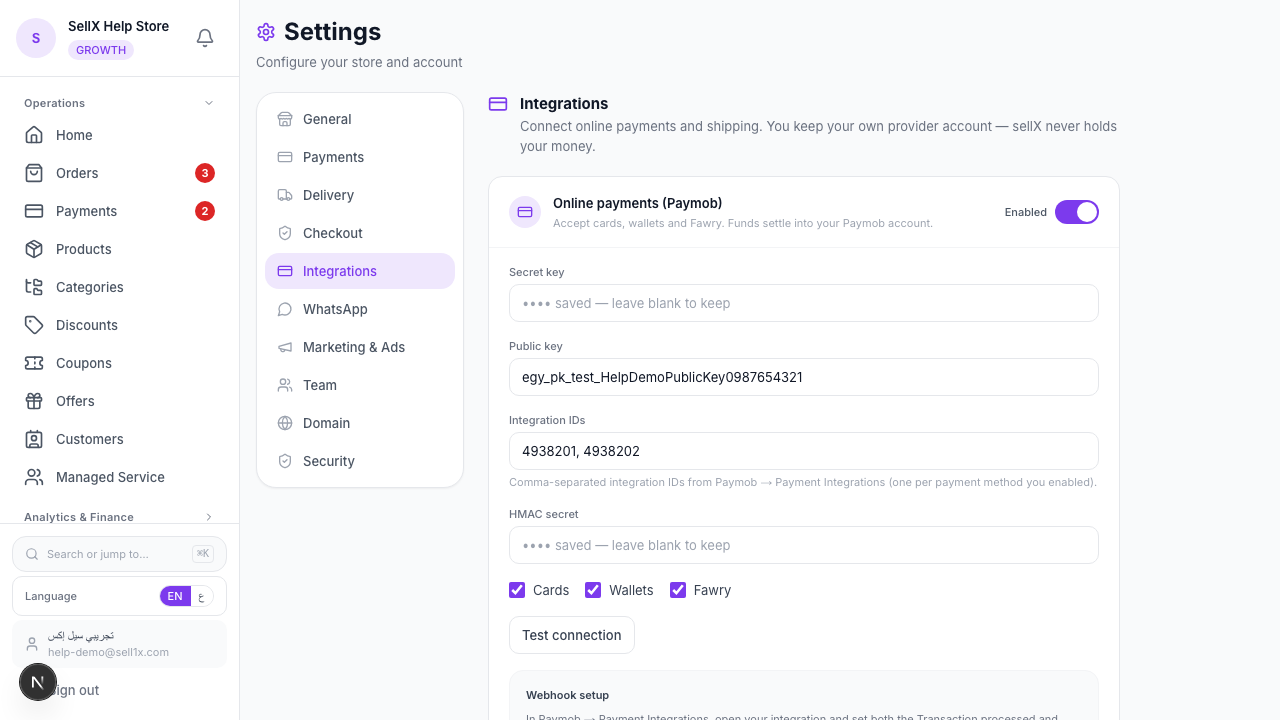
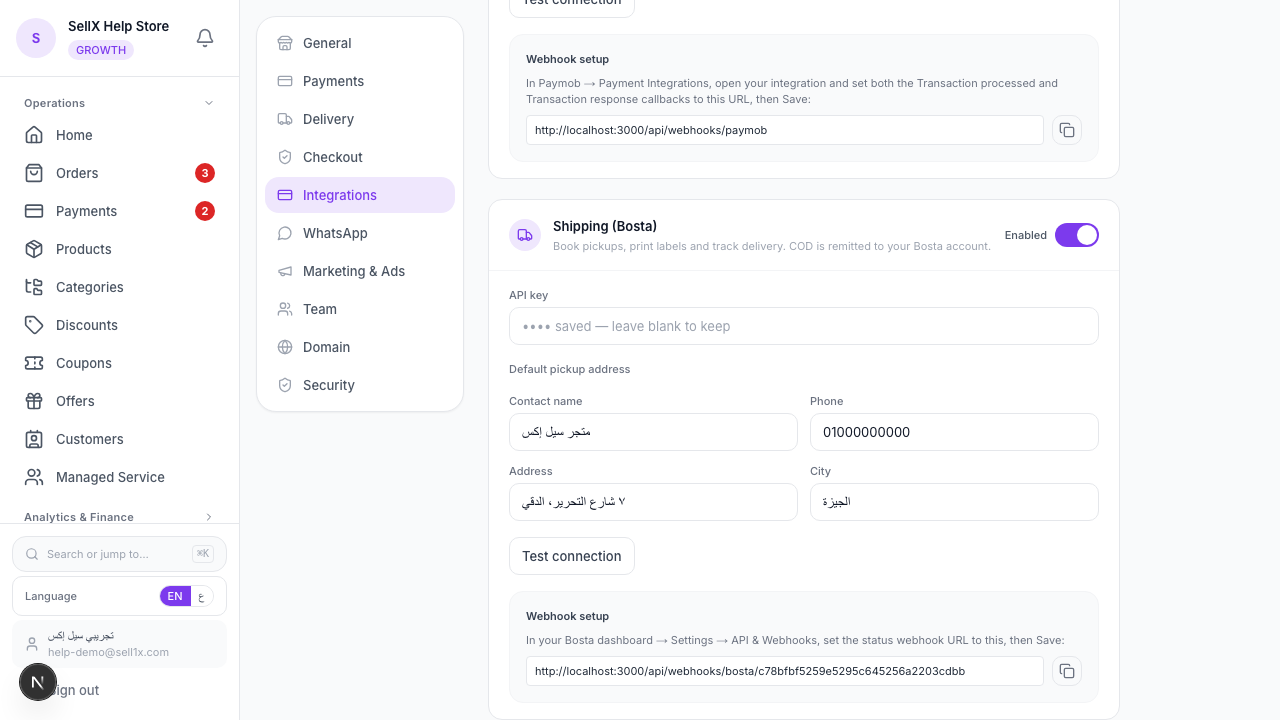
From the dashboard, open Settings → Integrations, and scroll to the Shipping (Bosta) section.
3. Enter your key and pickup address
Paste your API key, then fill in your default pickup address — the contact name, phone, address, and city the courier comes to. This is where Bosta picks up your packages.
4. Set the status webhook
sellX shows you a unique Webhook URL. Copy it, and in Bosta → Settings → API & Webhooks set your status webhook to that URL, then Save. Now every status change (picked up, in transit, delivered) flows back automatically.
5. Test and save
Click Test connection. Green means you're good — hit Save Changes.
Booking a Shipment
Open any confirmed order. You'll see a Book Bosta pickup button.
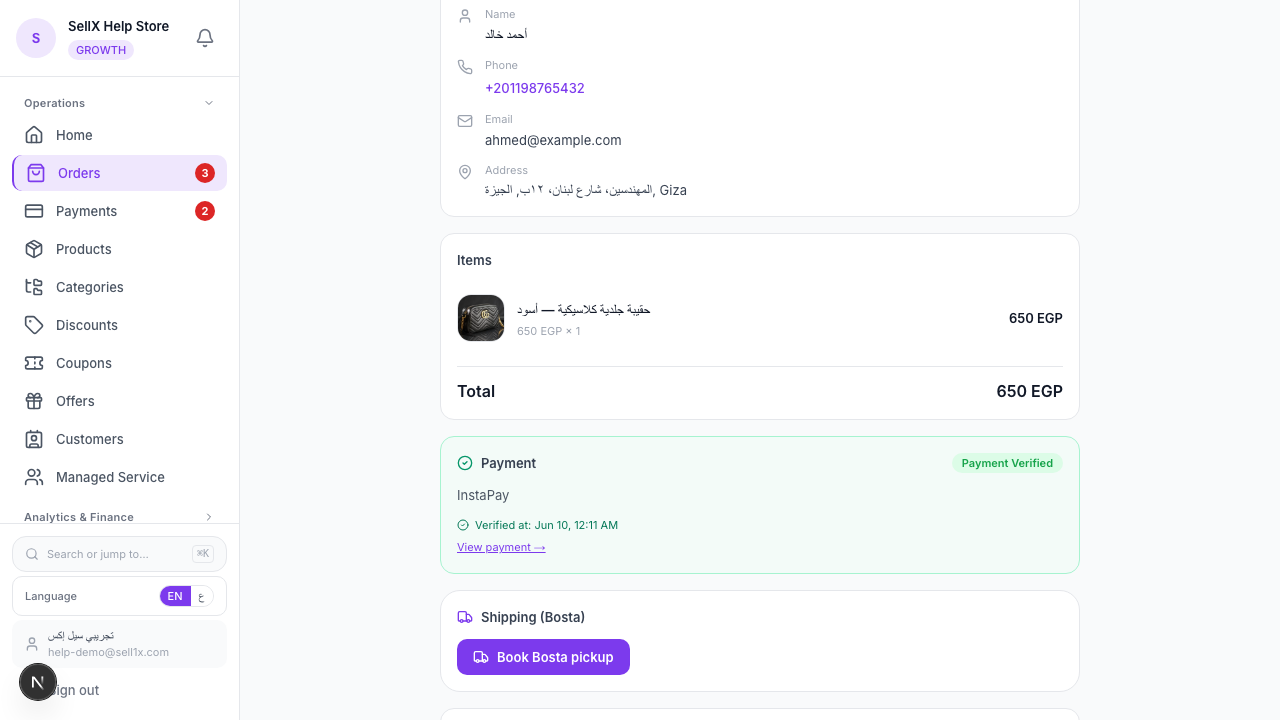
One click and Bosta creates the shipment using the order's address and COD amount. You instantly get:
- A tracking number (AWB) — saved on the order and shown to the buyer.
- Print label (AWB) — a ready-to-print waybill to stick on the box.
- A live status timeline — Picked up → In transit → Out for delivery → Delivered.
What the Buyer Sees
Your buyer's tracking page now updates on its own. When the package is picked up and moving, they see it — and the carrier tracking link is clickable, so the "where's my order?" messages stop.
Why This Is Worth It
1. Seconds per order, not minutes
No retyping. The order is the shipment. Ship 50 orders a day without breaking a sweat.
2. No address mistakes
The address goes straight from checkout to the courier. No fat-finger typos sending a box to the wrong street.
3. Tracking handles itself
You stop being a tracking-number copy machine. The buyer self-serves.
Tips
- Confirm before you book. Pair this with COD confirmation so you only ship orders the buyer actually wants.
- Keep your pickup address current. If you move, update it in Integrations so pickups don't fail.
- Print labels in batches. Book all the day's orders, then print every AWB together before the courier arrives.
The Bottom Line
Connecting Bosta turns shipping from a daily chore into a one-click step. Book, print, and let tracking run itself — while the COD lands in your own account.
Start on sellX and connect Bosta ←
Read next: Set a different delivery fee for every Egyptian governorate