The Biggest Problem: Scattered Orders
You sell from a sellX store + Instagram + WhatsApp + TikTok + some people call you on the phone. Result?
- Storefront orders: in sellX, organized
- Instagram DMs: in a notebook
- WhatsApp orders: in your head
- Phone orders: in a Notes app
One wrong entry in the wrong place = a lost order, messy inventory, or a duplicate shipment to the same customer.
The Fix: Every Order Lives in sellX — Even From WhatsApp
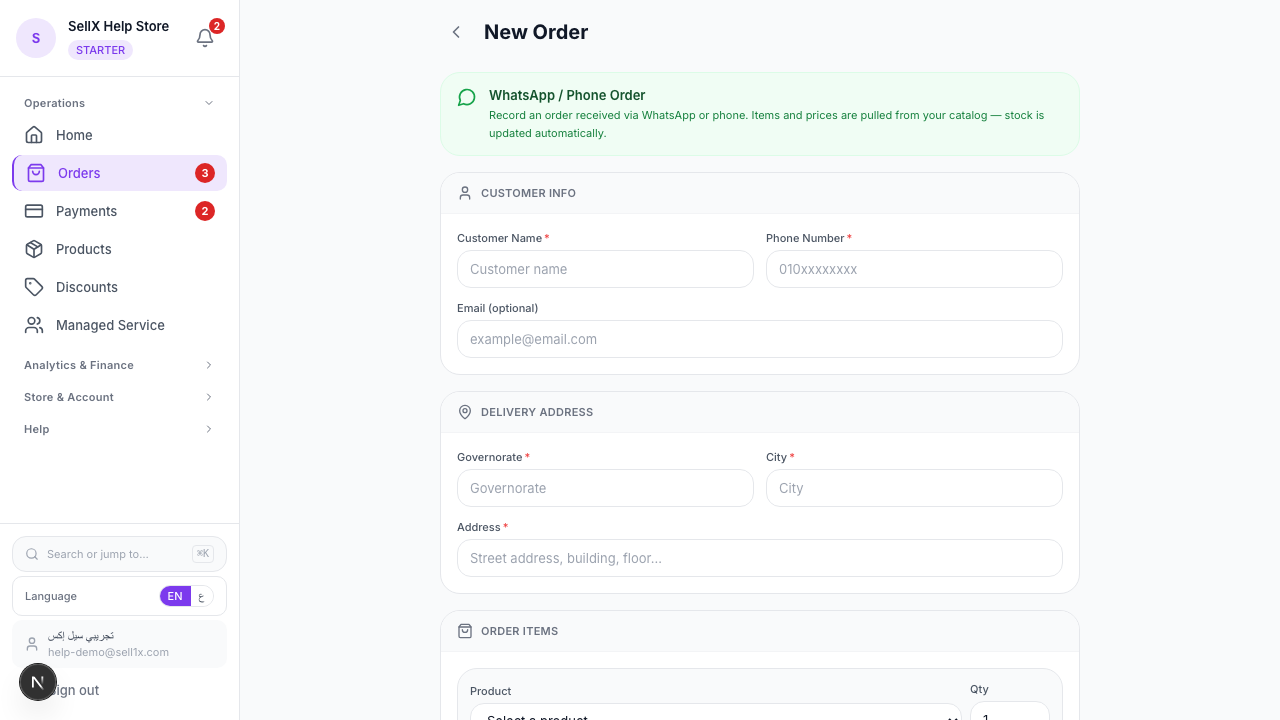
sellX has a "Create new order" button on the orders page. Click it and a manual order form opens.
What you enter
1. Pick the products — search your product catalog, select what the customer asked for, set quantity and variants (size, color, etc.). Stock updates instantly.
2. Customer details — name + WhatsApp number. For returning customers, sellX suggests details from previous orders.
3. Address — governorate field with autocomplete. Pick the governorate and the right delivery fee appears automatically.
4. Payment method — COD, Vodafone Cash, or whatever methods you have enabled.
5. Notes (optional) — any special request. "No plastic bag" or "Call before delivery".
What Happens Automatically After You Save
Exactly what happens when a customer orders from the storefront:
1. Order number generated
A unique number you can refer back to.
2. Stock decrements
If you entered 2 units of a product with 10 in stock, it's now 8. No drift.
3. Tracking link generated
Same link the storefront generates. Send it to the customer and they track themselves.
4. WhatsApp templates work
Open the order, pick "Confirmed", WhatsApp opens with a ready message containing the order number and total.
5. Shows up in analytics
Daily GMV, today's orders — all counted. Not just a receipt log.
When You Need This Feature
1. A customer ordered via Instagram DM
Someone placed their order in a DM. You take the details, open sellX, add the order, and send the WhatsApp confirmation template.
2. A customer called on the phone
Older buyers often call directly. You take the order over the call and add it.
3. Orders from a market or pop-up
You're selling at a temporary venue. All the orders get logged in sellX.
4. Referral / friend orders
"Hey Noha, set aside product X for me" — you add it under Noha's name and it shows in your system.
5. Bulk orders
A customer ordered 20 units at once? You add it as a single order with large quantities.
Tips to Enter Manual Orders Fast
1. Bookmark the form
Put /orders/new in your phone bookmarks. When an order comes over WhatsApp, open it directly.
2. Log while you talk
When the customer is texting you, open the form and fill it as the conversation happens. Faster than writing on paper and transcribing later.
3. Confirm details before closing the chat
Before ending the conversation, confirm: full name, phone, governorate, address, quantity, color, size. Prevents follow-up WhatsApp messages.
4. Send the tracking link once
Right after saving the order: "Registered your order, [Name]. Track it here: [link]". No more messages needed.
Why sellX's Approach Is Different
In other e-commerce tools, non-storefront orders go into a separate Excel sheet or external bookkeeping. Consequence: - Stock doesn't update - WhatsApp templates don't work - Analytics are incomplete
sellX treats manual orders identically to storefront orders. One unified experience.
The Bottom Line
There's no such thing as "storefront orders" vs. "other orders". Every order = in sellX. No notebooks, no Excel, no lost info.
Start free and put every order in one place ←
Read next: How to keep your Instagram orders organized